




- Глобальная сеть, созданная для того, чтобы всё в Интернете было безопасным, частным, быстрым и надёжным
- CDN, DNS, защита от DDoS-атак, управление ботами, балансировка нагрузки, WAF, и многое другое
- Интеллектуальная маршрутизация, оптимизация мобильных устройств и изображений, видео, и кэширование


- Настройка доменного имени в 1 клик. 1 клик к более чем 150 бесплатным приложениям
- Бесплатный SSL, Ежедневные резервные копии
- Круглосуточная поддержка через чат, телефон и базу знаний
Cloudflare vs GoDaddy: Quick Summary
GoDaddy takes the lead in this comparison. After trying both platforms, I found it a more complete hosting setup for most people.
It’s user-friendly, comes with all the essentials, backups, email, control panel, and live support, and handles WordPress and business sites really well.
Cloudflare is super fast and great if you’re building static sites or serverless apps, but it doesn’t include the usual tools most site owners need.
If you want a straightforward, plug-and-play hosting experience with actual support, GoDaddy has you covered.
Cloudflare vs GoDaddy: Overview
1. Prices and Plans Comparison
Cloudflare’s Pricing Is Unbeatable if You’re Comfortable Working in a Developer-Friendly, Serverless Environment.
When I compared both platforms, I noticed a huge difference in how they charge. GoDaddy uses a fixed-price model with shared hosting from $4.99/month and VPS plans going as high as $219.99/month. You pay upfront for bundled features like cPanel, free domains, email, and SSL.
Cloudflare, on the other hand, is usage-based, and honestly, it can be dirt cheap. You can get started for free with Pages and Workers, and even when you upgrade, most plans stay under $25/month unless you scale hard.
If you’re just hosting static sites or APIs, Cloudflare gives you massive value for almost no cost. But if you want a classic web host with a dashboard and WordPress support, GoDaddy makes more sense.
2. Customer Support Comparison: Who’s Got Your Back?
GoDaddy Offers Faster and More Accessible Human Support
A great provider should offer responsive, clear, and human help when you need it most.
So I tested both Cloudflare and GoDaddy to see how they handle support. I didn’t just read what they offer—I actually tried to get help myself.
Cloudflare Customer Support (Free Plan Test)
I wanted to see how much support you really get on Cloudflare’s Free plan. So I logged into my dashboard and clicked the Support option in the top menu. That brought me to a page where I could:
- Select a support topic (I chose Technical)
- Type in my question
- Get “helpful recommendations” based on Cloudflare documentation
I asked:
“How does Cloudflare’s CDN cache content, and what are the best practices to control cache expiration and ensure users get the most up-to-date version of my website?”
Here’s what happened:
- I got a non-human AI-style reply within about 1 minute
- The response was pulled directly from Cloudflare’s documentation
- It listed out practices like using Cache-Control, Edge TTL settings, and purging cache

While the answer was technically correct and helpful, it was not personalized. There was no one to clarify things further unless I upgraded to a Business plan.
And that’s the catch—you only get real support (chat or tickets) on paid plans. So if you’re on the free tier, you’re mostly on your own unless the documentation solves your issue.
GoDaddy Customer Support (Live Chat Test)
Next, I tested GoDaddy’s live chat support to see how responsive and helpful they are. From their “Contact Us” page, I launched the chat. First, I was greeted by an AI assistant.
I asked: “What’s the difference between self-managed and fully managed VPS hosting?”
The bot gave me a basic summary that was okay, but nothing detailed.

So I typed:
“Can I speak to a human?”
I was placed in a queue with a 1-minute wait time, and then a live agent named Rakshitha Bellapukonda joined.
I repeated my question, and this time, I got a clear, structured explanation. The agent outlined how self-managed hosting gives full control to developers, while fully managed hosting includes GoDaddy’s help with patching, monitoring, and app installs. The reply was quick, accurate, and written in a way that made sense even if you weren’t very technical.

Overall, it was a solid support experience—one you get access to even if you’re on cheaper plans.
3. Hosting Features Comparison
GoDaddy offers More Traditional Hosting Features Out of the Box, Including Email, Control Panel, Backups, and Site Migration Tools.
GoDaddy Features
While testing GoDaddy’s hosting, I had access to everything I’d expect from a full-service provider—easy-to-use cPanel, unlimited bandwidth, built-in SSL, one-click WordPress installs, and even free email accounts.
I liked that I could scale up to high-performance VPS or dedicated servers with root access, and all my sites could be managed under one login.
Backups were handled daily, and their WordPress plans came with staging environments, AI site builders, and DDoS protection baked in. It felt like a complete, beginner-to-pro setup.

Cloudflare Features
Cloudflare isn’t your typical web host—it’s built for developers who want speed, flexibility, and control.
When I deployed a site on Pages, the Git integration was seamless. It’s amazing for static sites and lightweight apps, especially with Workers powering serverless backend functions.
I had full SSL by default, blazing load speeds via their global CDN, and advanced tools like R2 object storage and Stream for video. But there’s no control panel, email, or auto backups. Everything runs through Git and APIs. It’s powerful, but not plug-and-play.
4. Website Performance Comparison
Cloudflare Delivers Lightning-Fast Load Times.
Before choosing a hosting or delivery provider, it’s important to know how your site will actually perform under real-world conditions.
Cloudflare Performance
To test Cloudflare’s real-world speed, I ran a GTmetrix scan on https://pages.cloudflare.com/ from a London server.
- LCP was just 709ms, meaning the main content of the page became visible in under a second.
- The Total Blocking Time was low at 65ms, and layout shifts were almost non-existent (CLS of 0.01).
- TTFB (Time to First Byte) was a snappy 57ms, showing how fast Cloudflare responds from its edge network.
- The page was fully loaded in just 1.2 seconds, and interactive at 1.2 seconds as well.

Cloudflare’s network clearly leverages its global CDN and edge delivery to serve static content blazingly fast. It’s optimized for speed out of the box—perfect for developers and JAMstack projects.
GoDaddy Performance
Next, I tested a real site hosted on GoDaddy: https://asg.ac/. This was also tested from London using GTmetrix.
- LCP clocked in at 2.2 seconds, which is more than 3x slower than Cloudflare’s.
- The site was fully loaded in 2.7 seconds, which is still decent but not ideal for performance-focused users.
- Time to Interactive was 2.1 seconds, and First Contentful Paint was 1.2s—again, not terrible, but noticeably slower.
- Layout shift was higher (CLS: 0.2), and the page felt a little heavier during load.

While GoDaddy’s speed is okay for general business sites or personal blogs, it doesn’t compete with Cloudflare’s ultra-fast edge performance, especially when it comes to delivering static or hybrid content.
5. Ease of Use Comparison: Which Platform Is Easier to Use?
GoDaddy is Easier to Use for Beginners and Traditional Hosting Setups.
I wanted to test both Cloudflare and GoDaddy myself to see how beginner-friendly each platform really is. I wasn’t just looking at which one had better documentation — I actually signed up, went through the dashboards, and tried setting up websites and checking the server and email tools to see how it all felt.
Registration and Creating a New Account
I started with Cloudflare to see how easy it is to sign up and launch a site. I specifically chose to try Cloudflare Pages, since it’s their platform for hosting static websites.
So I went to the Cloudflare Pages section and clicked Get Started.

That took me to a signup form where I entered an email and created a password. Pretty straightforward so far. After signing up, I was told to verify my email — I got the verification link within seconds and confirmed my account.

Once I verified, I was dropped into the Cloudflare dashboard. Right away, I got a prompt: “Get started with Workers. How would you like to begin?” And I had two options under Pages — either Import an existing Git repository or Use direct upload.

I clicked Import an existing Git repository, and the process was very developer-focused. I had to connect my GitHub account, authorize Cloudflare to access my repos, and then choose the one I wanted to deploy.

Cloudflare did a good job of auto-detecting the build settings. It pulled the branch, suggested a build command, and even pre-filled the output directory. But this is where things get tricky for beginners — if you don’t know what “npm run build” or “dist” means, it’s not going to feel easy. I had to review and confirm the build settings before I could click Deploy.
Once the build ran successfully, I got a working preview URL. So, in short, yes, it works, but it’s clearly made for developers who already know how GitHub and build pipelines work.
Next, I wanted to see how GoDaddy compared.
With GoDaddy, the process was much more familiar. I chose a WordPress hosting plan and clicked Buy. I went with the Managed WordPress Deluxe plan. After that, I clicked Continue to Cart and was asked to create an account using email, Facebook, or Google. I picked email and proceeded.

On the next page, I reviewed the plan details and saw a bunch of upsells. Things like extra security, more WordPress installs, and web tools were all pre-selected for me. I carefully unselected those and continued to payment.

Once paid, I was taken straight into the GoDaddy dashboard and could begin setting up my site. So overall, GoDaddy’s sign-up is easy, but you’ll need to navigate around some marketing fluff and cross-sells.
Client Area & Dashboard
After signing up, I wanted to understand how easy it was to navigate each provider’s dashboard. This is where a lot of beginners get lost, so I made sure to test everything hands-on.
I started with Cloudflare’s dashboard, which loads after login. There’s no separate “client area” — you get a single, unified dashboard. Once you add a domain or start using Cloudflare Pages or Workers, the dashboard expands with features on the left side: DNS, SSL/TLS, Caching, Rules, Workers, Pages, and more.

Since I was focused on Cloudflare Pages, I went into the Pages section, which showed me a list of all my projects. Each one had its Git repo, build status, and preview/production URLs. When I clicked on a specific project, I saw an Overview, a detailed Deployments section with logs and history, and Settings like build commands, output directories, environment variables, and domain settings.
The dashboard is clean and modern, but if you’re not already familiar with these concepts, it’s going to feel like a lot. I wouldn’t call it hard, but it’s definitely medium-level in terms of difficulty.
Next, I looked at GoDaddy’s dashboard. After logging in, I was greeted with a much more beginner-friendly layout.
The left-hand menu had everything clearly labeled: Dashboard, Domain, Website, Email, Store, Marketing, Conversations, and more.

On the main screen, there were setup tips like “Upload your logo” or “Publish your site,” plus sections like “Marketing tools” and “Customer Engagement.”
I liked that clicking anything in the menu didn’t redirect me to a new page — it just opened up a section on the right, keeping everything in one place. I could easily navigate to my WordPress hosting account and access more tools from there.
So in terms of dashboards, GoDaddy is way easier to navigate, especially if you’re new to hosting.
Hosting Setup: Creating a New WordPress Website
For this part, I wanted to see how simple each platform made it to actually create a working website, particularly with WordPress.
Starting with Cloudflare, this was a bit tricky because Cloudflare doesn’t host WordPress. Pages is for static sites only, so WordPress isn’t supported out of the box. I could technically deploy a static version of a WordPress site using plugins like Simply Static, but that requires building your site elsewhere first and then uploading the static files — not what most people are looking for if they want to run WordPress.
So next, I moved to GoDaddy, and this is where it was straightforward.
Here’s what I did:
- I went to my GoDaddy Product Page.
- Under Web Hosting, I found my cPanel-based hosting plan and clicked Manage.
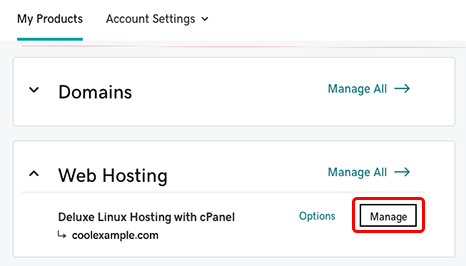
- In the dashboard, under Websites, I clicked Install Application.
- This launched the Installatron page. I scrolled to WordPress and clicked +Install this application.
- I chose the domain, left the directory blank, picked my own admin credentials, and set the site title and tagline.
- Then I clicked Install, and within minutes, my WordPress site was live.

No Git commands, no deployment logs, no build settings. Just a few clicks.
Server Management Dashboard
I also wanted to see how much control I had over the server, which is important if you’re planning to scale or troubleshoot issues.
With Cloudflare, I realized pretty quickly there’s no traditional server management. Since Pages and Workers are serverless, there’s no operating system or control panel to configure. You don’t get CPU/RAM graphs, there’s no cPanel or SSH — instead, everything is handled in the background on their edge network.
You do get build logs, environment settings, runtime metrics, and deployment previews, which are useful if you’re a developer.

But if you’re expecting something like server performance charts or the ability to restart a web server, you won’t find that here.
In contrast, GoDaddy gives you full cPanel access. Inside cPanel, I was able to manage files, databases, backups, cron jobs, email accounts, subdomains, SSL, and much more. Everything was neatly categorized.
If I wanted to go even deeper, I also found that I could enable SSH access. Here’s what I did:
- I went to My Products > Managed WordPress > Manage All.
- Under the Production Site section, I clicked Settings.
- Then I went to the SSH/SFTP login section and clicked View or Change.
- I enabled SSH, which replaced my SFTP login and gave me a new command string.
- I copied the new SSH credentials and could then connect to the server using my terminal.

So for traditional server management, GoDaddy gives you far more tools and flexibility.
6. Privacy and Security Comparison: Which Platform is More Secure?
GoDaddy Delivers Better All-in-One Hosting Security Tools.
Cloudflare Privacy and Security
I started by testing how much Cloudflare could protect my website right from the network edge. And in that area, it performs exceptionally well.
The free SSL certificate is enabled as soon as you add your domain — no technical steps required. DDoS protection is always on, and it’s backed by Cloudflare’s global network that filters both network-level and application-level attacks. And if you upgrade, you unlock the WAF (Web Application Firewall) with pre-configured rule sets and advanced custom rules.

Their privacy policy is also solid. Cloudflare doesn’t sell your data, and they support technologies like DNS-over-HTTPS and Encrypted SNI to keep your visitors’ connections private.
Where Cloudflare really stands out is its zero-trust access tools. You can secure internal apps using Cloudflare Access, create firewall rules based on behavior or IP, and even control origin access via Argo Tunnel.
However, they don’t provide any malware scans, backups, or site cleanup tools. If your WordPress site gets hacked or corrupted, Cloudflare can’t help you fix it. So while their network security is strong, actual website protection needs to come from your origin host or another service.
GoDaddy Privacy and Security
Next, I looked at GoDaddy, and this is where they shine — especially for anyone who wants built-in, hands-off security for their website.
Every plan includes a free SSL certificate, and depending on the level you choose, you also get automated daily backups, WAF, malware scans, and even priority malware cleanup on the higher tiers.
When I tested this myself, I saw that backups were available in the dashboard and could be restored quickly. There’s also a snapshot option if you’re on VPS. I liked that you don’t need to configure anything — the system just runs in the background.
Their Web Application Firewall helps stop malicious traffic before it hits your site, and continuous monitoring alerts you if something goes wrong. You even get protection from SEO spam, blacklist warnings, and file changes.
GoDaddy also includes DDoS protection as part of their CDN and web firewall combo, so even if you’re under attack, your site stays online.
While it doesn’t offer zero-trust tools or edge-level identity features like Cloudflare does, GoDaddy makes it simple for website owners who just want peace of mind and automatic protection.
7. Server Locations Comparison
Cloudflare’s Global Reach Is Unmatched.
When reviewing server locations, I wanted to find out which provider delivers the fastest content to the most users, no matter where they are.
Cloudflare Server Locations
I started with Cloudflare, and honestly, it’s on another level. Their global network spans 330 cities across 125+ countries, including harder-to-reach places like mainland China. This means your content can be served incredibly fast from virtually anywhere.
I found that Cloudflare reaches about 95% of the world’s population within 50 milliseconds, and because every single service runs at the edge, there’s no backhauling. Whether you’re deploying a site with Pages or running serverless apps with Workers, all requests are processed close to the user.

GoDaddy Server Locations
Next, I reviewed GoDaddy. They do have a decent setup. Their Anycast CDN includes WAF points of presence (POPs) in major cities like San Jose, London, Frankfurt, Singapore, Tokyo, and Amsterdam, among others.
But compared to Cloudflare, the reach is more limited. You also get to choose your server location when signing up (e.g., North America or Europe), and it’s possible to migrate later, but it’s a scheduled process and not instant.
Interestingly, GoDaddy’s newest security setup now runs on Cloudflare’s own network, which says a lot about Cloudflare’s dominance in this space.
Cloudflare vs GoDaddy: The Bottom Line
GoDaddy wins because it delivers the all-in-one hosting experience most people need—whether you’re running a WordPress site, business landing page, or email-powered blog. It’s easier to set up, has better support on all tiers, and includes essentials like backups, email, and cPanel. Cloudflare is great for developers, but GoDaddy is better for everyone else.
| Category | Winner | Why |
|---|---|---|
| Pricing and Plans | Cloudflare | Offers a generous free tier and flexible pay-as-you-go developer tools. |
| Support | GoDaddy | 24/7 live chat and phone support, even on entry-level plans. |
| Hosting Features | GoDaddy | Includes email, cPanel, backups, site migration, and more. |
| Website Performance | Cloudflare | Faster load times and edge delivery across 330+ global locations. |
| Ease of Use | GoDaddy | Easier dashboard, smoother onboarding, and no technical setup needed. |
| Privacy and Security | GoDaddy | Comes with backups, malware scans, WAF, and built-in SSL. |
| Server Locations | Cloudflare | Covers 330+ cities worldwide with edge processing and presence in China. |
Cloudflare and GoDaddy Alternatives
| Provider | Expert & User Reviews | |
|---|---|---|
 | IONOS Review | Visit IONOS |
 | Hosting.com Review | Visit Hosting.com |
 | Hostinger Review | Visit Hostinger |

